 AuthBackup
Your 2FA codes, never in just one place
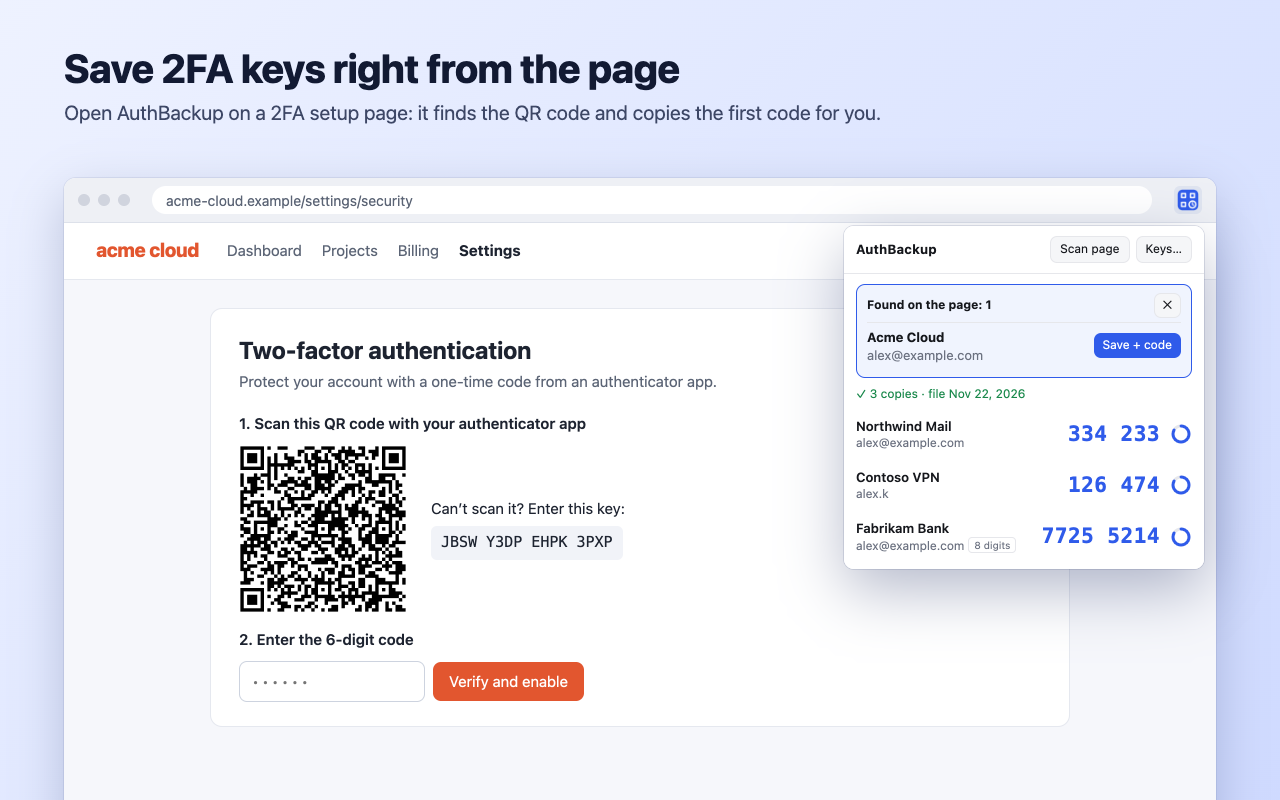
AuthBackup saves two-factor keys straight from the QR code on a page and copies one-time codes in one click. It keeps track of where each key has copies, so a lost phone or a reinstalled browser doesn't lock you out.
- This browser482 913✓
- App on your phone482 913✓
- Encrypted file or cloud482 913✓
One key, three places: the 2+1 rule.
Install
The Chrome Web Store listing is coming soon. Until then, install AuthBackup from the release zip:
- Download the latest zip from GitHub Releases.
- Unzip it into a folder you will keep.
- Open
chrome://extensionsand turn on Developer mode. - Click “Load unpacked” and pick the unzipped folder.
What it does
- Saves keys from the page
- It reads the QR code on your screen, including codes drawn in canvas or SVG. You can also paste a screenshot or drop an image.
- Brings over Google Authenticator
- Import the export QR with several keys at once. Send keys back to your phone the same way.
- Copies codes in one click
- Search by name and press Enter. If a code is about to change, you get the next one.
The 2+1 rule
Keep every key in three places: this browser, an authenticator app on your phone, and an encrypted file on a drive or in your email. AuthBackup remembers which copies each key has and shows what's missing until all three are there.
Backups come as an encrypted file, a QR code for Google Authenticator, plain JSON or otpauth links for Aegis, 2FAS, Bitwarden and others.
Offline by design
AuthBackup has no servers, no accounts and no analytics. Its pages run under a Content Security Policy that blocks every network request, so your keys can't leave the browser even by mistake.
An optional password encrypts the key list with AES-256-GCM. The code is open source, and the privacy policy lists every piece of data it touches.